Geofencing is the feature that makes a smart lock feel smart. You walk away and the door locks itself. You come home with your hands full of groceries and the door is already unlocked. No keys, no keypad, no phone in your hand. Setting up geofencing on a smart lock takes about ten minutes, and this guide walks through it for the most common brands. The rest of this guide covers how to set up geofencing on a smart lock in plain language.
Table of Contents
Table of Contents
- How to Set Up Geofencing on a Smart Lock: What Geofencing Actually Does
- What You Need Before You Start
- The General Setup Steps
- Brand by Brand: Where the Setting Lives
- Picking the Right Geofence Size
- Fixing Geofencing When It Stops Working
- Safety Rules for Auto-Unlock
- Geofencing Beyond the Front Door
- The Short Version
- References
Before we start, one honest note. Geofencing depends on your phone, and phones are not perfect at knowing where you are. It works well for most people most of the time, but you should always keep a backup way in, like a keypad code or a physical key.
How to Set Up Geofencing on a Smart Lock: What Geofencing Actually Does
When it comes to how to set up geofencing on a smart lock, getting the details right makes all the difference.
Many homeowners find that how to set up geofencing on a smart lock is easier than they expected once they know the basics.
A geofence is an invisible circle around your home. Your phone watches where it is using GPS, Wi-Fi, and Bluetooth. When your phone leaves the circle, the lock app knows you are gone and can lock the door. When your phone comes back inside the circle, the app gets ready, and when you get close to the door, it unlocks.
The unlock step needs two things to line up: your phone must have left the geofence earlier (so the lock knows you were away), and then it must come back. This two-step dance keeps the door from unlocking while you are home all day. The storables.com geofencing guide lays out these same basics: enable location services, draw the fence, set the auto lock and unlock actions, and test by leaving and coming back.
If you are picking a lock partly for this feature, compare models in best smart locks for front doors. Auto-unlock quality varies a lot between brands.
What You Need Before You Start
Many homeowners find that how to set up geofencing on a smart lock is easier than they expected once they know the basics.
The key to how to set up geofencing on a smart lock is choosing the right approach for your space and budget.
Four things have to be true for geofencing to work:
1. Your lock model supports auto-unlock or geofencing. Most August, Yale, Schlage Encode, Kwikset Halo, and Level locks do. Check the box or the app. 2. The lock's app is installed on your phone and you are logged in. Logging out breaks geofencing, so stay signed in. 3. Location services are on, set to "always allow" for the lock app. Geofencing cannot work if the app only gets your location while it is open. 4. Bluetooth is on. GPS gets your phone to the neighborhood, but Bluetooth tells the lock you are at the door.
Also charge your phone and check the lock's batteries. A lock with dying batteries may not respond to the unlock signal, and the sherlockslocksmith.com troubleshooting guide names low batteries as one of the most common reasons geofencing stops working.
The General Setup Steps
The key to how to set up geofencing on a smart lock is choosing the right approach for your space and budget.
With a little planning, how to set up geofencing on a smart lock can fit even a busy schedule.
Every brand hides the setting in a slightly different menu, but the flow is the same:
1. Open the lock app and select your lock. 2. Find the auto-unlock, auto-lock, or geofencing setting. It is usually under Settings, Lock Settings, or Automations. 3. Turn on the feature. The app will ask for location permission. Choose "always." 4. Confirm your home location on the map. Drag the pin onto your actual house, not down the street. 5. Set the geofence size. A medium circle that covers your block but not the whole town works best for most homes. 6. Turn on auto-lock too, with a short delay like one to five minutes. That way the door locks behind you when you leave. 7. Walk away from the house and come back to test it.
The smarthomewizards.com guide adds a useful networking tip: keep a smart plug or repeater between a far-away hub and the lock, since a weak signal at the door makes every smart feature less reliable. The plan in smart home Wi-Fi network setup helps with that.
Brand by Brand: Where the Setting Lives
With a little planning, how to set up geofencing on a smart lock can fit even a busy schedule.
Before you start, it helps to understand how how to set up geofencing on a smart lock works in real homes.
August and Yale Access. Open the app, select the lock, and look for Auto-Unlock, sometimes listed under Auto-Lock and Unlock. Turn it on and set your home location. Yale's version uses two modes: the app waits until you are a good distance away before it arms itself, then unlocks as you approach the door. The manuals.plus Yale app manual explains this Home and Away logic in plain terms. Note that guest users on August and Yale cannot use auto-unlock. Only owners get it, so plan keypad codes for guests instead.
Schlage Encode and Encode Plus. In the Schlage Home app, open the lock and look under Settings or Automation. Schlage handles location features a bit differently than August, and some users set up the geofence through a voice assistant routine instead of a toggle in the lock app. The smarthomemuse.com guide covers exactly where to look in each app and what to check when the feature stops working after an update.
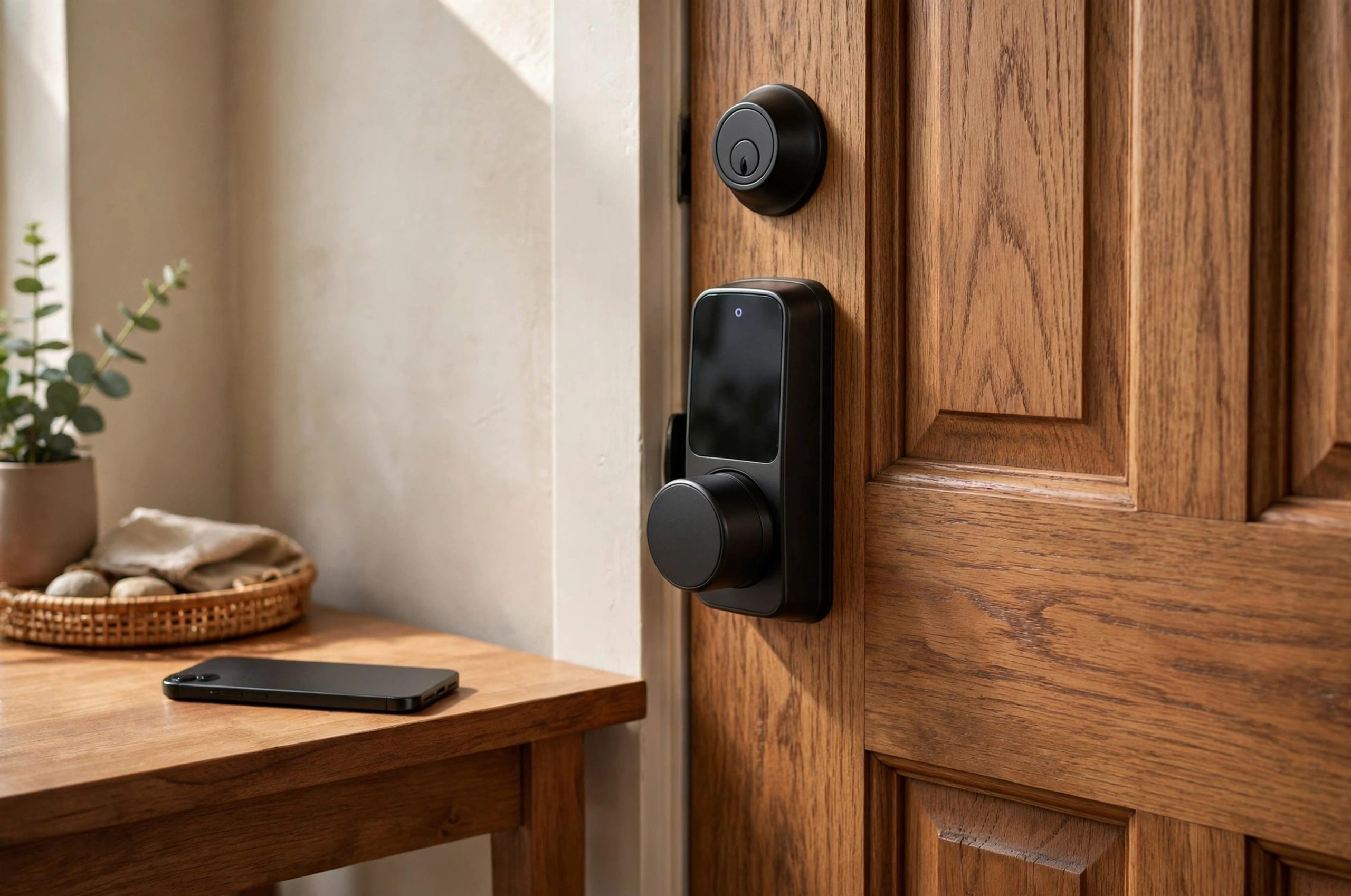
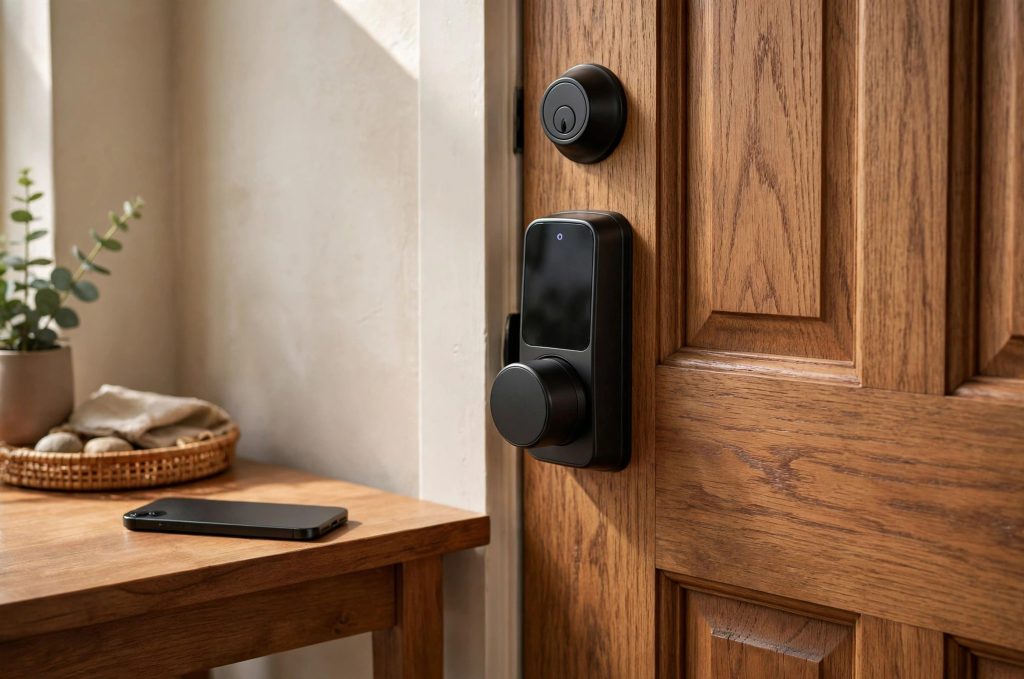
Kwikset Halo. Open the Kwikset app, tap the lock settings icon on the lock dashboard, and find Auto-Unlock by Distance. Each person in the house must enable it on their own phone, since the feature follows the phone, not the lock. Kwikset's own support page at kwikset.com-does-not-work-as-expected-on-my-smart-lock.-how-can-i-fix-this) stresses the details people miss: stay logged in, keep a stable internet connection, and replace low lock batteries.
Level Lock. In the Level app, select the lock and find the auto-unlock or arrival feature. Confirm the home address is right. Level locks hide inside the door, so make sure the Bluetooth signal reaches your phone at the doorstep. A metal storm door can weaken the signal.
If you rent out a room or a whole unit, a smart deadbolt made for rental property pairs geofencing for you with scheduled codes for tenants, so each person gets the right kind of access.
The key to how to set up geofencing on a smart lock is to take it one step at a time.
Picking the Right Geofence Size
Before you start, it helps to understand how how to set up geofencing on a smart lock works in real homes.
A good plan for how to set up geofencing on a smart lock saves time, money, and frustration.
Size matters more than most people think. A circle that is too small means your phone never fully leaves it. You walk to the corner store and the lock thinks you are still home. A circle that is too big means the lock may unlock while you are still blocks away, or your phone battery drains faster from constant location checks.
Start with a radius that covers your home and the nearest few streets. Live test it: leave for a real errand and watch whether the door locks. Come home and see whether it unlocks as you reach the door. Adjust once based on what happens. If you live in an apartment building, a tight circle can confuse the lock, since your phone may bounce in and out of the fence while you are inside. In that case, a slightly larger circle plus a keypad code as backup is the practical answer.
For a gate or a garage side door, a keypad lock for the garage door avoids the geofencing question entirely. Punch in the code and walk in.
Fixing Geofencing When It Stops Working
A good plan for how to set up geofencing on a smart lock saves time, money, and frustration.
For most people, how to set up geofencing on a smart lock comes down to a few smart choices.
Geofencing breaks more often than any other smart lock feature, and the fixes are almost always on the phone side:
- Confirm the feature is still turned on in the app. Updates and reinstalls sometimes switch it off.
- Check that location permission is still set to "always." Phone updates love to reset this to "while using the app."
- Make sure you are logged in to the lock app. Geofencing silently stops when you are logged out.
- Check the home pin on the map. If it drifted to the wrong spot, delete the fence and set it again while standing at your door.
- Replace the lock batteries. Weak batteries break the Bluetooth handshake at the door.
- Update the app and the lock firmware. Makers fix location bugs in updates regularly.
- Turn off battery-saver or aggressive power management for the lock app. Some phones kill background location to save power, which kills geofencing.
The smarthomeace.com August guide walks through the August-specific version of these steps, and the manuals.plus Danalock guide shows how smaller brands handle the same setup. The pattern is the same everywhere: permissions, location, batteries, firmware.
If one family member's phone works and another's does not, compare their settings line by line. Nine times out of ten the broken phone has location set to "while using" or is logged out of the app.
Safety Rules for Auto-Unlock
For most people, how to set up geofencing on a smart lock comes down to a few smart choices.
If you are new to how to set up geofencing on a smart lock, start with the simplest option and build from there.
Auto-unlock is convenient, and it deserves a little caution. Do not rely on it as your only way in. Keep a keypad code memorized, keep a physical key with a neighbor, or both. Phones die, apps crash, and Bluetooth fails at the worst moment.
Think about who else gets auto-unlock. On most locks, only owner-level users can use it. That is a good thing. Give guests and service people time-limited keypad codes instead of app access. You can manage all of this more safely with the advice in how to secure smart home devices.
Also consider your street. If your geofence is large and your lock unlocks early, the door may sit unlocked while you are still parking the car. A smaller fence and a short auto-lock delay keep that window tight. For homes where several people come and go, Matter-compatible locks play nicer with shared households, and Matter smart home devices explained covers what that standard changes.
Geofencing Beyond the Front Door
If you are new to how to set up geofencing on a smart lock, start with the simplest option and build from there.
Once the front door works, the same idea applies elsewhere. Geofencing can turn on your porch lights as you arrive, set the thermostat back when everyone leaves, and arm the security system when the last phone exits the fence. A VPN router for a smart home keeps all of that traffic private on your network.
For older family members, keep it simple. A lock with a big keypad and no app needed may serve them better than geofencing, and the smart home checklist for elderly parents walks through those trade-offs.
The Short Version
When it comes to how to set up geofencing on a smart lock, getting the details right makes all the difference.
Install the app, stay logged in, set location to always, turn on auto-unlock, pin your home correctly, and test it with a real trip. Keep a keypad code as backup. When it breaks, check permissions and batteries first. Do that and your door will greet you like it knows you, because it does. Keep this guide handy the next time how to set up geofencing on a smart lock comes up.
References
Many homeowners find that how to set up geofencing on a smart lock is easier than they expected once they know the basics.
- Storables. (n.d.). Smart lock geofencing setup: Automatic locking and unlocking. https://storables.com/ideas-and-tips/smart-lock-geofencing-setup-automatic-locking-and-unlocking/
- SmartHomeMuse. (n.d.). Smart lock geofencing not working? 9 fixes for August, Yale, Schlage, and Level locks. https://smarthomemuse.com/smart-lock-geofencing-not-working-fixes-august-yale-schlage-level/
- Smart Home Wizards. (n.d.). Smart lock auto unlock geofencing setup. https://smarthomewizards.com/podcast-smart-lock-auto-unlock-geofencing-setup/
- Sherlock's Locksmith. (n.d.). Troubleshooting geofencing issues in smart locks. https://sherlockslocksmith.com/troubleshooting-geofencing-issues-in-smart-locks/
- Kwikset. (n.d.). My auto-unlock by distance (geofencing) does not work as expected on my smart lock. How can I fix this? https://www.kwikset.com/support/answers/my-auto-unlock-by-distance-(geofencing)-does-not-work-as-expected-on-my-smart-lock.-how-can-i-fix-this
- Manuals.Plus. (n.d.). Danalock V3 smart lock user guide. https://manuals.plus/danalock/v3-smart-lock-manual
- SmartHomeAce. (n.d.). How to set up geofencing on August smart lock like a pro. https://smarthomeace.com/how-to-set-up-geofencing-on-august-smart-lock/
- Manuals.Plus. (n.d.). Yale My Home app user guide. https://manuals.plus/yale/my-home-app-manual
The key to how to set up geofencing on a smart lock is choosing the right approach for your space and budget.
Was this guide helpful?

About My Garden US
The My Garden US editorial team writes practical, in-depth home and garden guides for American homeowners — tested advice, no fluff.
You May Also Like
Residential Solar Cost Per Watt 2026 USA: A Plain Guide for Homeowners
May 20, 2026 21 views
Best VPN Router for Smart Home USA: What to Know Before You Buy
May 23, 2026 22 views
Best Mesh WiFi for Smart Home 2026 USA
July 24, 2026 18 views