---
Table of Contents
Table of Contents
- Reset Smart Thermostat without Wifi: First: Know the Three Kinds of Reset
- What to Do Before Any Reset
- Nest Thermostats (Google Nest)
- ecobee Thermostats
- Honeywell Home Thermostats
- Amazon Smart Thermostat
- Sensi (Emerson) Thermostats
- tado and Alarm.com Thermostats
- After the Reset: Getting Heat and Cooling Back
- When a Reset Does Not Fix It
- The Bottom Line
- References
Your smart thermostat lost its WiFi connection. Or you moved into a house where the previous owner left theirs on the wall. Either way, you need to reset it, and the app will not help because there is no connection. The good news: every major smart thermostat can be reset right on the device, with no WiFi and no phone needed. This guide shows how to reset a smart thermostat without WiFi, brand by brand. This guide covers reset smart thermostat without wifi in plain steps.
Reset Smart Thermostat without Wifi: First: Know the Three Kinds of Reset
When it comes to reset smart thermostat without wifi, getting the details right makes all the difference.
Many homeowners find that reset smart thermostat without wifi is easier than they expected once they know the basics.
Before you touch anything, know what you are asking the thermostat to do. There are three levels.
Restart (soft reset). The thermostat reboots. All settings stay. This fixes frozen screens and glitchy behavior. It takes a minute or two.
Network reset. The thermostat forgets WiFi networks and passwords but keeps your schedules and preferences. Use this when you get a new router or change the WiFi password.
Factory reset. The thermostat wipes everything and returns to out-of-the-box state. Schedules, preferences, equipment settings, account links, all gone. Use this when selling the house, handing the thermostat to someone else, or when nothing else fixes a deep problem.
Most of the time, people ask for a factory reset when a restart or a network reset would do. Start small. You can always wipe it later.
What to Do Before Any Reset
Many homeowners find that reset smart thermostat without wifi is easier than they expected once they know the basics.
The key to reset smart thermostat without wifi is choosing the right approach for your space and budget.
Write down your wiring. If the thermostat might lose its equipment settings, photograph the wiring screen or write down which wires connect to which terminals. On a Nest, find this under Settings, then Equipment, then Wiring. On an ecobee, it is under the installation settings. This photo can save a service call later.
Note your schedule. If you like your heating and cooling schedule, jot down the key setpoints. A factory reset erases them.
Check the breaker. Some "broken" thermostats are just unpowered. If the screen is dark, check the HVAC breaker before assuming the worst.
Nest Thermostats (Google Nest)
The key to reset smart thermostat without wifi is choosing the right approach for your space and budget.
With a little planning, reset smart thermostat without wifi can fit even a busy schedule.
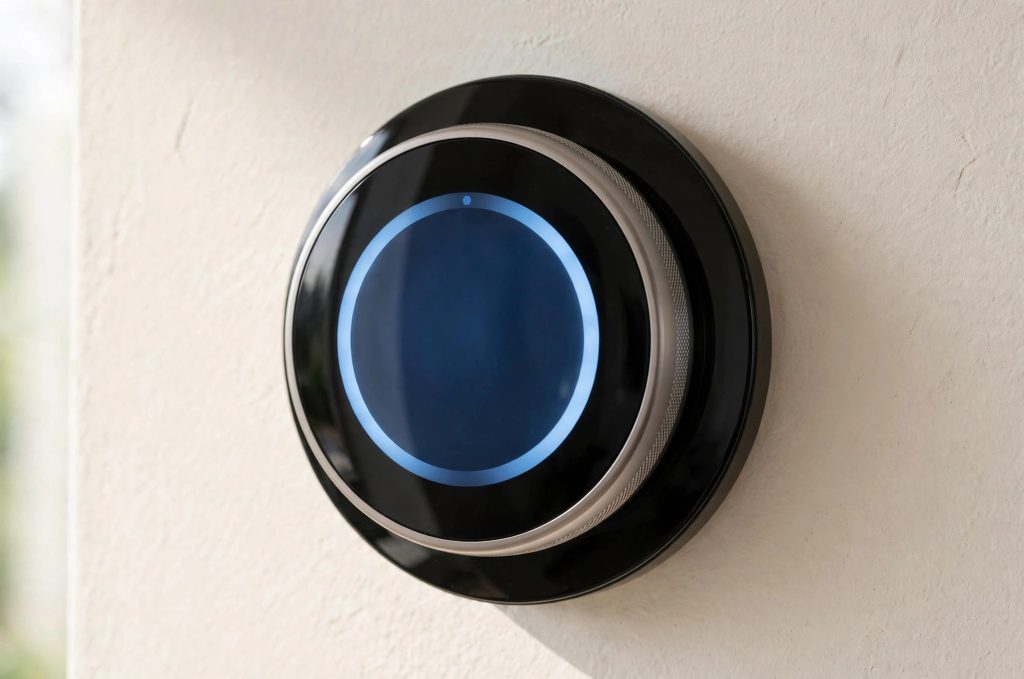
Nest thermostats are reset entirely on the device. No WiFi needed.
Restart. Press the thermostat ring and hold it down until the screen goes dark, about ten seconds. Release. The Nest reboots and keeps all settings.
Network reset. Press the ring to open the menu. Go to Settings, then Reset, then Network. Confirm. The Nest forgets WiFi credentials but keeps everything else. This is the right choice after a router change.
Factory reset. Press the ring to open the menu. Go to Settings, then Reset, then All Settings. Confirm twice. The Nest wipes everything and returns to the setup screen. A full walkthrough of these steps, including what happens to your account link, is covered in a smart thermostat reset guide (Digital Trends on factory resetting a smart thermostat).
The newest Nest Thermostat (no rotating ring). This model leans on the app for some functions, but you can still reset it on the device through the Settings menu. If the screen is unresponsive, remove it from the wall plate for a minute, then snap it back on. That power cycle often clears a freeze. A Nest-specific reset guide covers the ring and non-ring models (GearBrain on Nest factory reset).
ecobee Thermostats
With a little planning, reset smart thermostat without wifi can fit even a busy schedule.
Before you start, it helps to understand how reset smart thermostat without wifi works in real homes.
ecobee gives you several reset levels, all on the device.
1. From the home screen, tap the menu and go to Settings, then Reset. 2. Choose what to wipe:
- Reset Schedule and Preferences clears your schedule but keeps equipment settings and the account link.
- Reset Registration unlinks the ecobee account but keeps everything else. Use this when moving out and leaving the thermostat for the next resident.
- Reset All wipes everything back to factory state, including HVAC equipment settings. ecobee warns that you may need a technician to reconfigure the equipment afterward, so photograph your settings first.
ecobee's own support page walks through each option and when to use it (ecobee support on resetting your thermostat).
A physical reset also works. Gently pull the thermostat off the wall plate, wait about thirty seconds, and push it back on. This power cycle fixes many freezes without wiping anything.
Honeywell Home Thermostats
Before you start, it helps to understand how reset smart thermostat without wifi works in real homes.
A good plan for reset smart thermostat without wifi saves time, money, and frustration.
Honeywell makes several smart lines, and the steps differ slightly.
Models with a reset button. Some Honeywell thermostats have a small reset button on the faceplate or inside the battery compartment. Press and hold it for about ten seconds, then release. The thermostat restarts with factory defaults.
Models without a reset button. Do a power cycle: turn off the breaker or remove the batteries, wait at least thirty seconds, then restore power.
Smart models (T9, T10, and similar). On the touchscreen, swipe down from the top, tap Settings, then Advanced Settings, then Reset Thermostat. For WiFi-only models, press and hold the Fan and System buttons together for five seconds to reset the WiFi connection without wiping the schedule. A Honeywell-specific reset guide covers the button and no-button methods (how to reset a Honeywell thermostat).
Getting reset smart thermostat without wifi right takes a little patience, but the steps are simple.
Amazon Smart Thermostat
A good plan for reset smart thermostat without wifi saves time, money, and frustration.
For most people, reset smart thermostat without wifi comes down to a few smart choices.
The Amazon thermostat resets through its on-device menu.
1. Press the center button to open the menu. 2. Go to Settings, then Reset or Advanced. 3. Choose Factory Reset and confirm.
For a simple freeze, a soft reset works: pull the display off the wall plate, wait two to three minutes, and snap it back on. A step-by-step guide covers the soft reset, the menu factory reset, and the app-based removal (how to reset an Amazon thermostat).
Sensi (Emerson) Thermostats
For most people, reset smart thermostat without wifi comes down to a few smart choices.
Sensi thermostats use a button combination.
1. Pull the faceplate off the wall. 2. Remove the batteries and wait about three minutes. 3. Put the batteries back in. 4. When the display returns, press and hold the Menu button and the down arrow together for about thirty seconds, until the display goes off and comes back.
That sequence performs a full reset with no app and no WiFi. A Sensi-specific walkthrough covers the faceplate, battery, and button steps (how to reset a Sensi thermostat).
tado and Alarm.com Thermostats
If you are new to reset smart thermostat without wifi, start with the simplest option and build from there.
tado Smart Thermostat X. Press and hold all three buttons for six seconds until the screen shows FR, then release. Press and hold the middle button for six seconds to confirm. The screen blinks during the reset. tado's help center documents this exact sequence (tado help center on factory reset).
Alarm.com thermostats. The steps vary by model. On some, you remove the display and hold a button on the base for thirty seconds until the status LED blinks rapidly. On others, you navigate to Settings, then Installer, then Reset on the device. If the thermostat is paired to a Z-Wave network, remove it from the network first. Alarm.com's official reset document covers the HD, T2000, and T3000 models (Alarm.com smart thermostat factory reset).
After the Reset: Getting Heat and Cooling Back
When it comes to reset smart thermostat without wifi, getting the details right makes all the difference.
A factory reset returns the thermostat to the setup wizard. Walk through it on the device. It will ask about your system type: forced air, heat pump, boiler, and so on. Answer carefully. Wrong equipment settings can run the system wrong or not at all.
If you photographed the wiring and settings before the reset, this takes five minutes. If you did not, and the system does not heat or cool correctly after setup, call an HVAC technician. Do not guess at equipment settings. A wrong setting on a heat pump can damage the compressor.
Once the basic heating and cooling works, reconnect WiFi. Go to the network settings on the device, pick your network, and enter the password. Then link the app if you use one. Your schedules and preferences will need rebuilding, which is the price of a fresh start.
For help choosing a replacement or comparing brands, see (ecobee versus Honeywell comparison) and (WiFi thermostat for vacation home reviews).
When a Reset Does Not Fix It
A reset fixes software problems. It does not fix hardware problems. Call for help if:
- The screen stays dark after a power cycle. The thermostat may not be getting power. Check the breaker and the C-wire.
- The thermostat reboots in a loop. This can mean a power issue, like a missing common wire, rather than a software fault.
- Heating or cooling does not respond after a correct setup. The problem may be in the furnace or air handler, not the thermostat.
- You smell burning or see scorch marks. Turn off the breaker and call a technician.
If you are replacing the unit entirely, see (smart thermostat installation cost). For simpler programmable options, see (programmable thermostat for seniors reviews).
The Bottom Line
You do not need WiFi to reset a smart thermostat. Every major brand hides the reset in the on-device menu or behind a button combination. Start with a restart, try a network reset for connection issues, and save the factory reset for last. Photograph your wiring and settings first, and you will be back up and running in minutes. With these steps, reset smart thermostat without wifi stays simple and safe.
References
ecobee Support. (n.d.). Resetting your ecobee thermostat. https://support.ecobee.com/s/articles/Resetting-your-ecobee-thermostat
Digital Trends. (n.d.). How to factory reset a Nest smart thermostat. https://www.digitaltrends.com/home/how-to-factory-reset-a-smart-thermostat/
GearBrain. (n.d.). How to factory reset your Nest thermostat when moving house. https://www.gearbrain.com/amp/factory-reset-instructions-nest-thermostat-2653676841
Tender Home Assist. (n.d.). Quick fix: Resetting your Honeywell thermostat with ease. https://tenderhomeassist.com/how-to-reset-honeywell-thermostat-to-factory-settings/
AEANET. (n.d.). How do I reset my Amazon thermostat? https://www.aeanet.org/how-do-i-reset-my-amazon-thermostat/
Sense Mother. (n.d.). How to reset Sensi thermostat? Quick and simple steps. https://sensemother.com/how-to-reset-sensi-thermostat/
tado Help Center. (n.d.). How do I do a factory reset when installing my wired smart thermostat X? https://help.tado.com/en/articles/10538902-how-do-i-do-a-factory-reset-when-installing-my-wired-smart-thermostat-x-or-wireless-temperature-sensor-x
Alarm.com. (n.d.). Factory reset an Alarm.com smart thermostat to its default settings. https://answers.alarm.com/@api/deki/pages/7048/pdf/Factory%2breset%2ban%2bAlarm.com%2bSmart%2bThermostat%2bto%2bits%2bdefault%2bsettings.pdf?stylesheet=default
Was this guide helpful?

About My Garden US
The My Garden US editorial team writes practical, in-depth home and garden guides for American homeowners — tested advice, no fluff.