---
Table of Contents
Table of Contents
- Smart Home Guest Network: Why a Guest Network Matters for Smart Homes
- What You Need Before You Start
- Step-by-Step: Enable the Guest Network
- Which Devices Go Where
- Brand-Specific Paths
- Locking It Down: Security Best Practices
- Moving Smart Devices to the Guest Network
- What About a Separate IoT Network vs. Guest Network?
- Common Problems and Fixes
- The FCC Basics Still Apply
- Tie It to the Rest of Your Smart Home
- The Bottom Line
- References
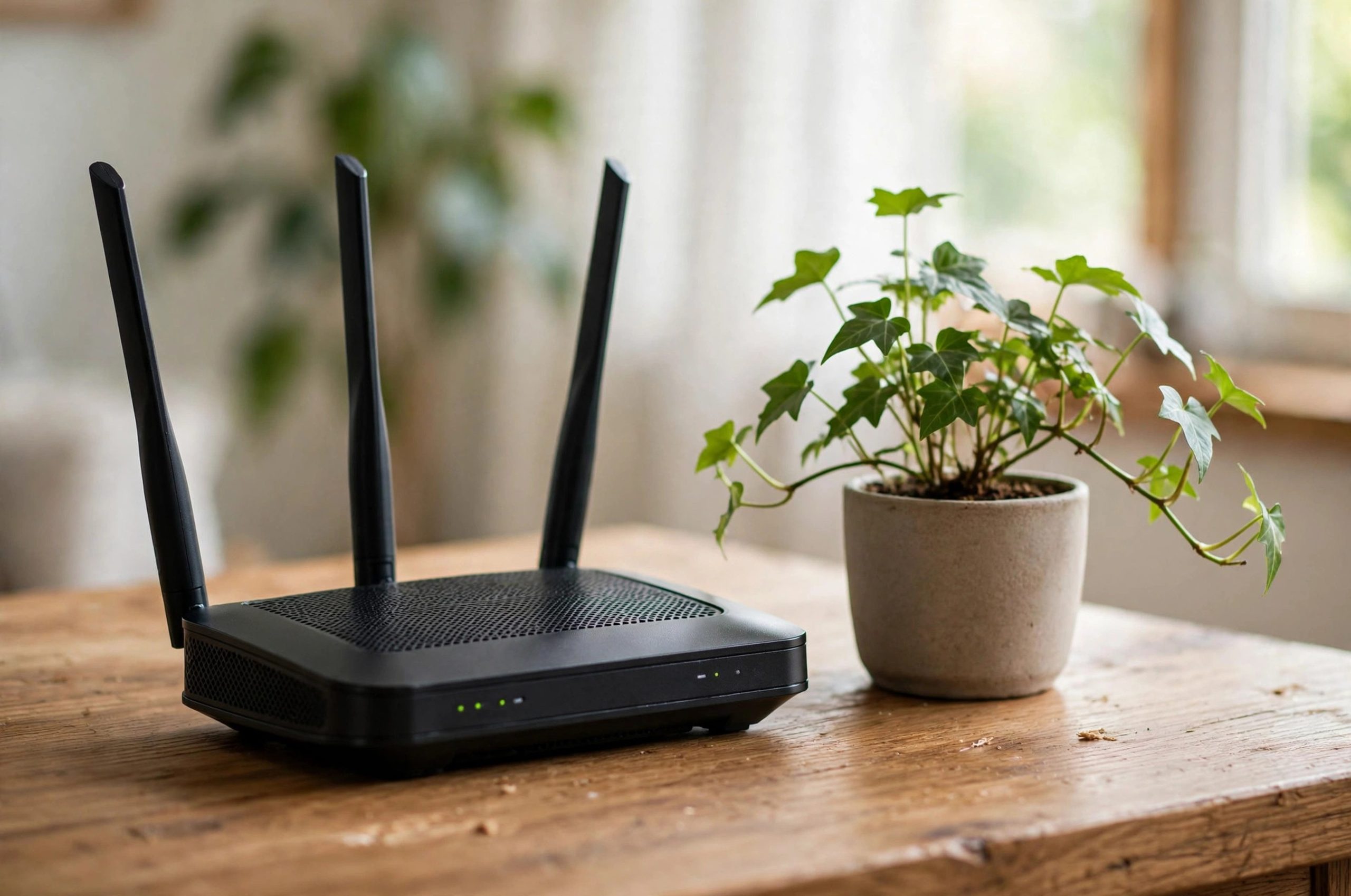
Your smart bulbs, plugs, cameras, and doorbells all share your WiFi with your laptop, your phone, and your family photos. That is convenient, and it is also a risk. Smart home gadgets are built cheap, updated rarely, and hacked often. If one gets compromised, everything on the same network is exposed. The fix is a smart home guest network: a separate WiFi network that keeps your gadgets and your guests apart from your private devices. This guide shows how to set one up the right way. If you are new to smart home guest network, start with the basics below.
Smart Home Guest Network: Why a Guest Network Matters for Smart Homes
When it comes to smart home guest network, getting the details right makes all the difference.
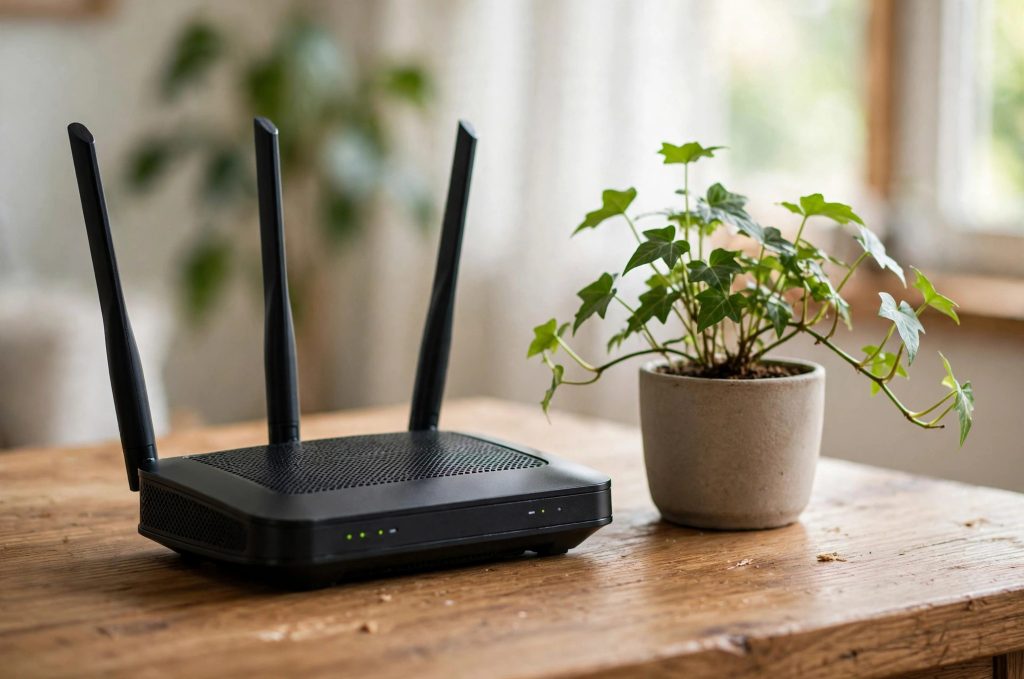
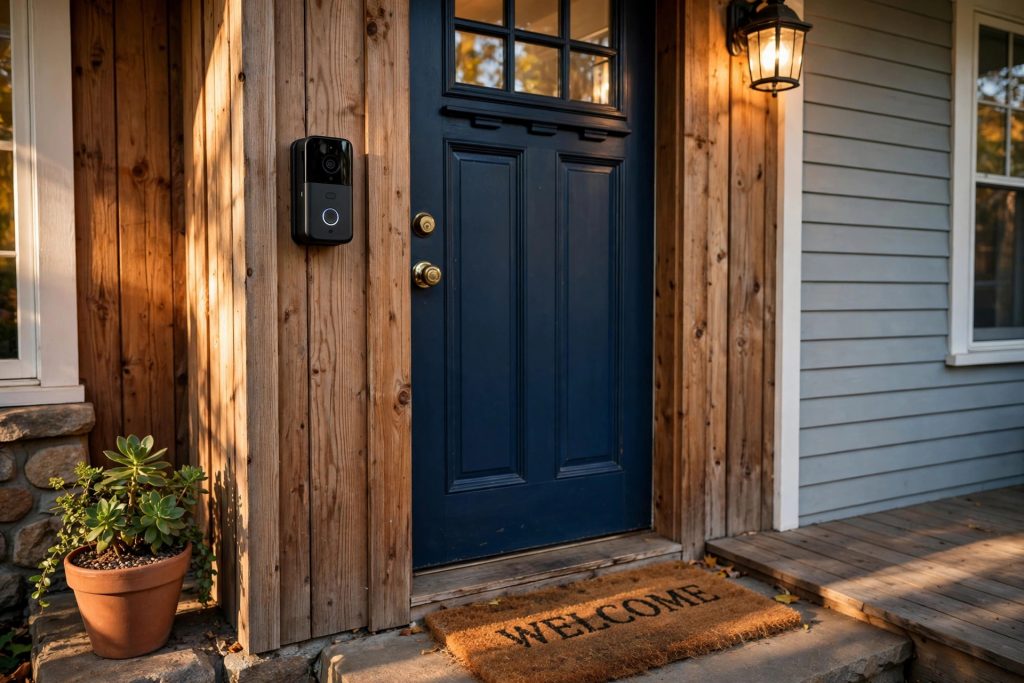
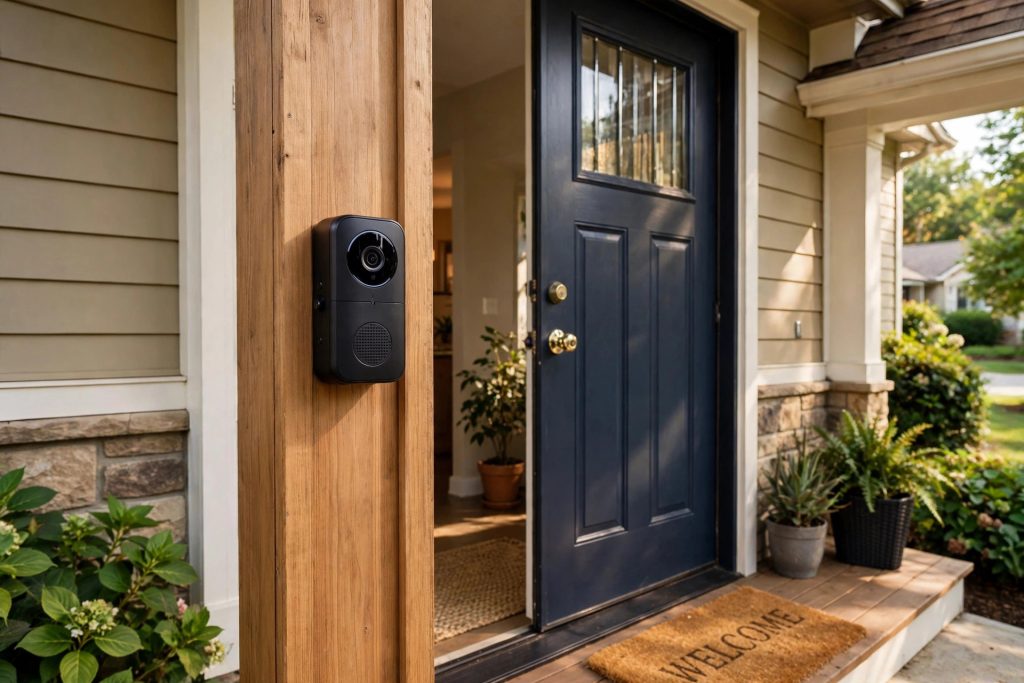
Many homeowners find that smart home guest network is easier than they expected once they know the basics.
Think of your home network as a house. Right now, every device lives in the same big room. Your laptop with your tax files sits next to a twenty-dollar smart plug with software that has not been updated in years. If someone breaks into the smart plug, they can walk across the room to your laptop.
A guest network builds a wall down the middle of that room. Smart devices and visitors go on one side. Your computers, phones, and storage stay on the other. The two sides cannot see each other.
This matters for two reasons.
Smart devices get hacked. Cheap connected gadgets are a favorite target because their security is weak and owners rarely update them. A compromised camera or plug becomes a foothold into your network. Isolation means the attacker gets the gadget and nothing else.
Guests bring unknown devices. Every phone and laptop a visitor connects could carry malware. A guest network gives them internet without giving them your printer, your shared folders, or your smart home controls.
The Federal Trade Commission's connected-device guidance stresses access limits and network segmentation as core protections (FTC on keeping connected devices secure). A guest network is the home version of that advice.
What You Need Before You Start
Many homeowners find that smart home guest network is easier than they expected once they know the basics.
The key to smart home guest network is choosing the right approach for your space and budget.
Almost every router sold in the last decade has a guest network feature. You need:
- Your router's admin password (often printed on a sticker on the router, unless you changed it).
- A phone or computer connected to your home WiFi.
- Ten quiet minutes.
If you rent your router from your internet provider, the guest feature may live in the provider's app instead of the router's web page. Xfinity users look in the xFi app. Spectrum, AT&T, and others have their own apps with the same feature under a different name.
Step-by-Step: Enable the Guest Network
The key to smart home guest network is choosing the right approach for your space and budget.
With a little planning, smart home guest network can fit even a busy schedule.
The menus differ by brand, but the steps are the same everywhere.
1. Log in to your router. Open a browser and type the router's address, usually 192.168.1.1 or 192.168.0.1. Or open your router's phone app. Enter the admin username and password.
2. Find the guest network setting. Look for Guest Network, Guest WiFi, or Guest Access in the menu. On Netgear it sits under Advanced. On TP-Link it is under Advanced as well. On ASUS it has its own tab. On Google and Nest Wifi, it lives in the Google Home app under WiFi settings.
3. Turn it on. Flip the toggle or check the box.
4. Name it clearly. Pick an SSID that is obviously the guest network, like "SmithFamily-Guest" or "Home-IoT". Do not use your name, address, or anything personal.
5. Set a strong, unique password. Do not reuse your main WiFi password. Make the guest password long. Since you will type it rarely, complexity is fine. A router security guide walks through these general steps for every major brand (RouterHax guest WiFi guide).
6. Choose WPA2 or WPA3 encryption. Never leave a guest network open, and never use the ancient WEP setting. WPA2 is the minimum. WPA3 is better if your router offers it.
7. Enable isolation. This is the most important step. Look for "Allow guests to access my local network," "Client isolation," or "AP isolation." Turn OFF local network access and turn ON isolation. This is the wall between the two sides. Without it, the guest network is just a second name for the same open room.
8. Block router admin access. Guests should not reach the router's settings page. Most routers block this by default on guest networks, but check.
9. Save and test. Save the settings. The router may reboot its WiFi. Then connect your phone to the new guest network and confirm you get internet but cannot see your other devices.
Which Devices Go Where
With a little planning, smart home guest network can fit even a busy schedule.
Before you start, it helps to understand how smart home guest network works in real homes.
Not every device belongs on the guest network. Sort them by trust and by need.
Put on the guest network:
- Smart bulbs, plugs, and switches
- Robot vacuums
- Smart speakers (unless you cast to them constantly)
- Security cameras and video doorbells
- Smart appliances like washers and ovens
- Visitor phones, tablets, and laptops
- Kids' gaming consoles (debatable, but they are a common malware vector)
Keep on the main network:
- Your computers and work laptops
- Your phones and tablets
- Network storage and backup drives
- Printers you print to from your computer
- Anything that stores passwords, money, or private files
The gray area. Some devices need to talk across the wall. A phone on the main network may not find a speaker on the guest network for casting. A wireless printer on the guest network may be invisible to your laptop. Test each device after the move. If something you use daily breaks, move that one device back to the main network. A practical guide to this sorting process notes the trade-offs and suggests testing before committing (guest WiFi for a safer smart home).
Brand-Specific Paths
Before you start, it helps to understand how smart home guest network works in real homes.
A good plan for smart home guest network saves time, money, and frustration.
Netgear. Advanced, then Guest Network. You can set separate guest networks for the 2.4 GHz and 5 GHz bands, plus access schedules.
TP-Link. Advanced, then Guest Network. Includes bandwidth control and time limits per guest.
ASUS. The Guest Network tab sits in the main navigation. ASUS routers allow up to three guest networks per band, with expiry timers.
Linksys. WiFi Settings, then Guest Access. Lets you cap the number of guests.
Eero. Open the eero app, tap Settings, then Guest Access, and toggle it on. Share the credentials by QR code.
Google and Nest Wifi. Open the Google Home app, go to WiFi, then Guest WiFi. Simple on-off with a shareable password.
Xfinity. Manage it in the xFi app under the gateway's WiFi settings.
An ISP's own setup guide covers the general flow plus eero-specific steps (Astound on setting up guest WiFi).
Locking It Down: Security Best Practices
A good plan for smart home guest network saves time, money, and frustration.
For most people, smart home guest network comes down to a few smart choices.
Enabling the network is step one. These habits keep it safe.
Use a password, always. An open guest network invites anyone in range. Always require a password.
Change the guest password regularly. Change it after parties, after houseguests leave, and every few months. This takes thirty seconds in the router app.
Update router firmware. Router makers patch security holes through firmware updates. Turn on automatic updates if your router offers them. An old router with old software is a weak wall.
Change the router admin password. The default admin password is printed in manuals and posted online. Change it to something strong and unique.
Consider bandwidth limits. Cap the guest network at a share of your total speed so a guest streaming video cannot choke your work calls. Many routers offer this under the guest settings.
Turn the guest network off when not needed. If no guests are coming and your smart devices could live on a dedicated IoT network instead, disable the guest SSID between visits. A network that is off cannot be attacked.
A smart home security roundup collects these practices with network segmentation at the top of the list (tips to secure smart home WiFi).
Moving Smart Devices to the Guest Network
For most people, smart home guest network comes down to a few smart choices.
If you are new to smart home guest network, start with the simplest option and build from there.
This is the tedious part. Each smart device must be moved one at a time.
1. Open the device's app. 2. Go to the device's WiFi or network settings. 3. Choose the new guest network name and enter its password. 4. Wait for the device to reconnect. 5. Test that it still responds to the app and to voice commands.
Do this for one device, test it, then move to the next. If a device refuses to connect to the guest network, check two things: some older 2.4 GHz-only devices fail if the guest network is 5 GHz only, so enable the 2.4 GHz guest band. And some devices need the phone and the device on the same network during setup, so temporarily join your phone to the guest network, run setup, then switch back.
A home security company's explainer on isolating IoT devices walks through why this separation matters and which gadgets benefit most (why IoT devices belong on guest WiFi).
What About a Separate IoT Network vs. Guest Network?
If you are new to smart home guest network, start with the simplest option and build from there.
Some routers let you create multiple networks. The ideal setup is actually three: main, guest (for visitors), and IoT (for smart devices). Visitors get internet only. Smart devices get internet plus whatever cloud access they need, isolated from everything else.
If your router supports only one extra network, combine visitors and IoT on the guest network. That is still far better than one flat network. If your router supports VLANs or multiple SSIDs, split them. A step-by-step IoT network guide covers this segmentation thinking (how to create a guest WiFi network for smart devices).
Common Problems and Fixes
When it comes to smart home guest network, getting the details right makes all the difference.
"My speaker disappeared from the app." The phone and the speaker are on different networks. Move the speaker back to the main network, or control it through its own app instead of casting.
"The camera won't connect to the guest network." Check the band. Many cameras only use 2.4 GHz. Make sure the guest network broadcasts on 2.4 GHz.
"Guests complain the WiFi is slow." Check the bandwidth cap on the guest network and raise it. Also check that the guest network is not stuck on a congested channel.
"I can't find the guest setting." Very old routers may not have it. If your router is more than eight years old, consider upgrading. A modern router pays for itself in security alone.
"The router app wants me to make an account." Some mesh systems require a cloud account to manage settings. That is normal for those brands. Use a strong, unique password for the account.
The FCC Basics Still Apply
Many homeowners find that smart home guest network is easier than they expected once they know the basics.
The FCC's home wireless security guide covers the foundations: turn on encryption, change default names and passwords, and keep software updated (FCC guide to protecting yourself online). A guest network builds on those basics. Do the basics first, then segment.
Tie It to the Rest of Your Smart Home
The key to smart home guest network is choosing the right approach for your space and budget.
A guest network is one layer. Pair it with the rest of your security: strong unique passwords on every smart device account, two-factor authentication where offered, and regular firmware updates. For building out the device side safely, see (smart home starter kit guide). For locks and thermostats that live on the new network, see (smart lock for front door reviews), (smart lock for Airbnb remote access), and (WiFi thermostat for vacation home reviews).
The Bottom Line
With a little planning, smart home guest network can fit even a busy schedule.
A smart home guest network takes ten minutes to set up and pays off every day. Enable the guest network, use WPA2 or WPA3 with a unique password, turn on client isolation, and move your smart gadgets and visitors onto it. Keep your computers and private files on the main network. Test each device after the move. That wall down the middle of your network is the simplest, cheapest security upgrade a smart home can get. A little care goes a long way with smart home guest network.
References
RouterHax. (n.d.). How to set up a guest WiFi network on any router. https://routerhax.com/guest-wifi-network/
QuickWebDesigns. (n.d.). Guest Wi-Fi: A simple way to make your smart home safer. https://quickwebdesigns.com/guest-wi-fi-a-simple-way-to-make-your-smart-home-safer/
Automatech Home. (n.d.). 8 tips to secure your smart home Wi-Fi networks. https://automatechhome.com/8-tips-to-secure-your-smart-home-wi-fi-networks/
MacSolutions Plus. (n.d.). Home security: Why you should put IoT devices on a guest Wi-Fi network. https://www.macsolutionsplus.com/knowledge-base/home-security-why-you-should-put-iot-devices-on-a-guest-wi-fi-network/
Astound. (n.d.). How to set up a secure guest WiFi network. https://www.astound.com/learn/internet/how-to-set-up-guest-wifi-network/
CuteNews Home. (n.d.). How to create a guest Wi-Fi network for your smart devices. https://cutenews.xyz/how-to-create-a-guest-wi-fi-network-for-your-smart-devices/
Federal Communications Commission. (n.d.). How to protect yourself online. https://www.fcc.gov/consumers/guides/how-protect-yourself-online
Federal Trade Commission. (n.d.). Careful connections: Keeping the internet of things secure. https://www.ftc.gov/business-guidance/resources/careful-connections-keeping-internet-things-secure?ref=vpnrevie.ws
Was this guide helpful?

About My Garden US
The My Garden US editorial team writes practical, in-depth home and garden guides for American homeowners — tested advice, no fluff.
You May Also Like
How to Make a Dumb Doorbell Work With Chime
October 30, 2026 14 views
Best Learning Thermostat for Seniors USA: A Plain Guide to Simple Comfort
May 4, 2026 19 views
Tesla Wall Connector vs ChargePoint Comparison: Which Home EV Charger Should You Buy?
January 16, 2026 21 views