---
Table of Contents
Table of Contents
- Remote Employee Home Setup: 1. Claim a dedicated spot
- 2. Get a real chair
- 3. Set the desk at the right height
- 4. Raise the screen to eye level
- 5. Sort your keyboard and mouse
- 6. Lock down the internet
- 7. Get call-ready audio and video
- 8. Handle security basics
- 9. Set up light and air
- 10. Build the daily routine
- 11. Ask about the stipend
- Day-one morning checklist
- References
Your first remote job starts Monday. The laptop arrives Friday. Between now and then, you need a workspace that will carry you through eight-hour days without wrecking your back, your eyes, or your sanity. If you are new to remote employee home setup, start with the basics below.
Most first-timers set up on the couch, hurt for a week, then scramble to fix it. This checklist gets you set up right the first time. Work through it in order. Check off each item before day one.
Remote Employee Home Setup: 1. Claim a dedicated spot
When it comes to remote employee home setup, getting the details right makes all the difference.
Many homeowners find that remote employee home setup is easier than they expected once they know the basics.
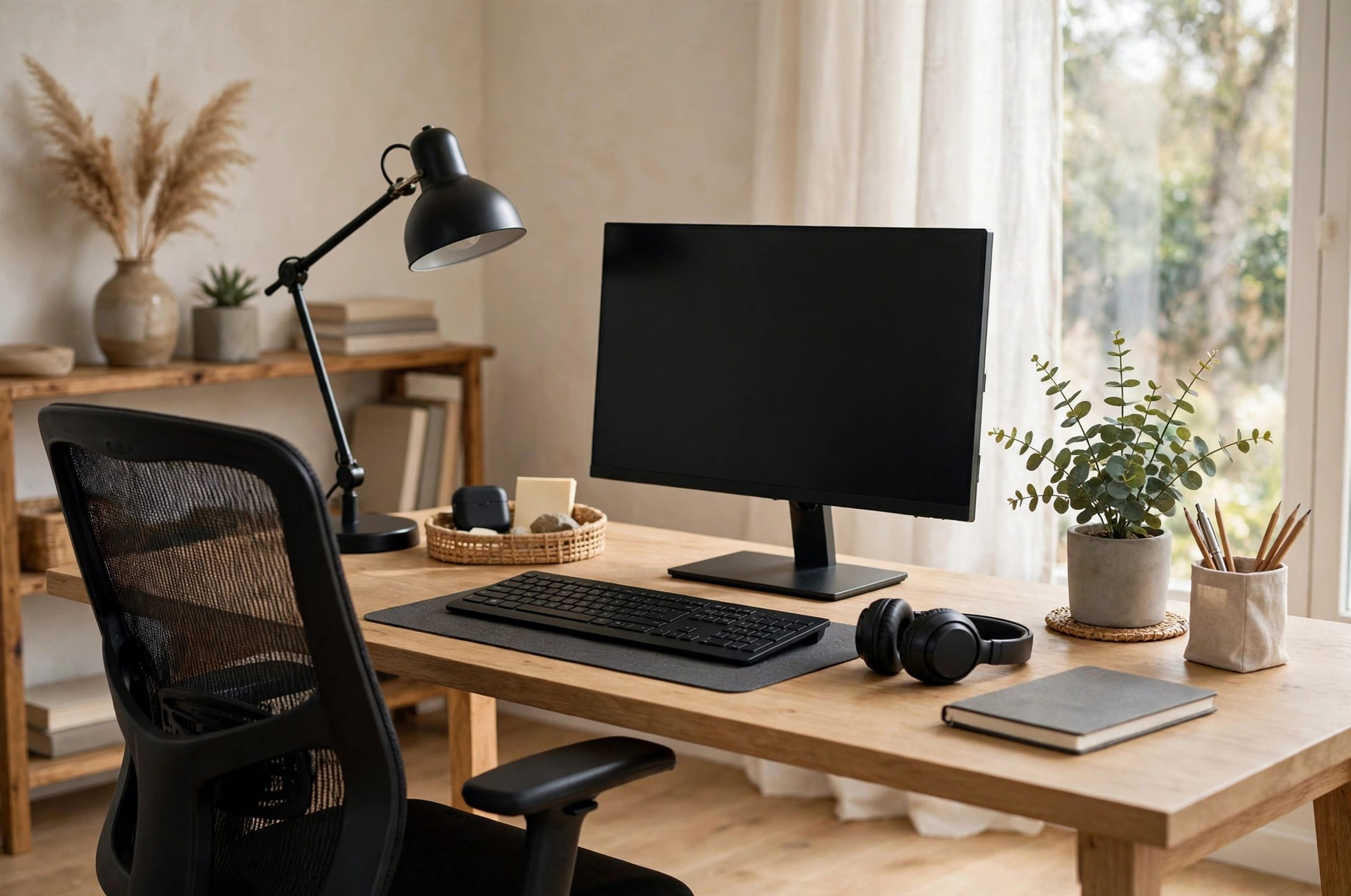
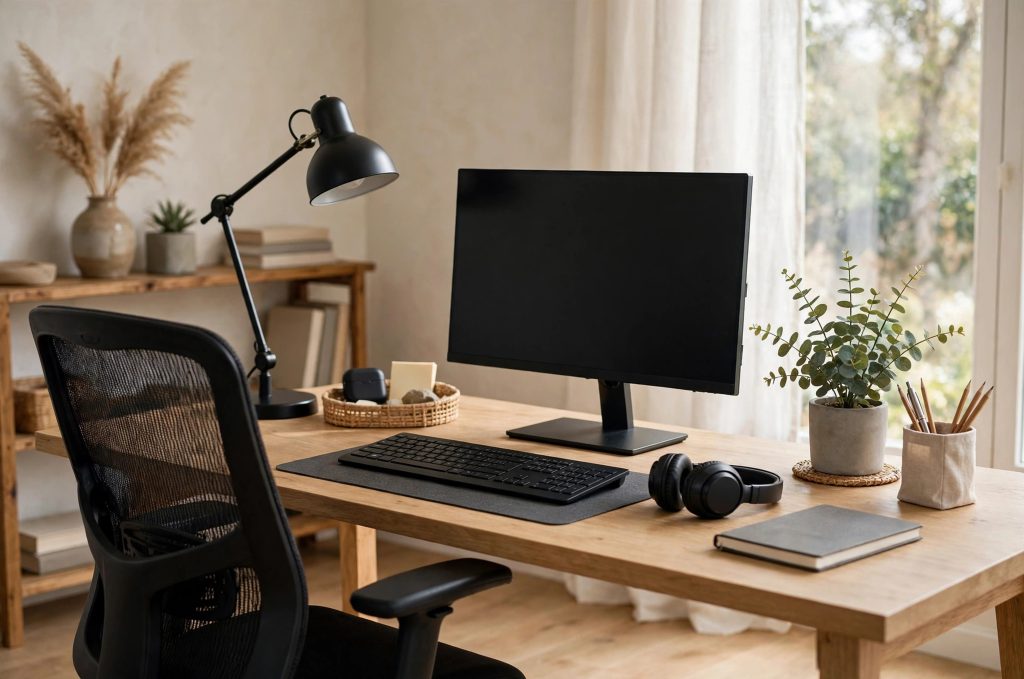
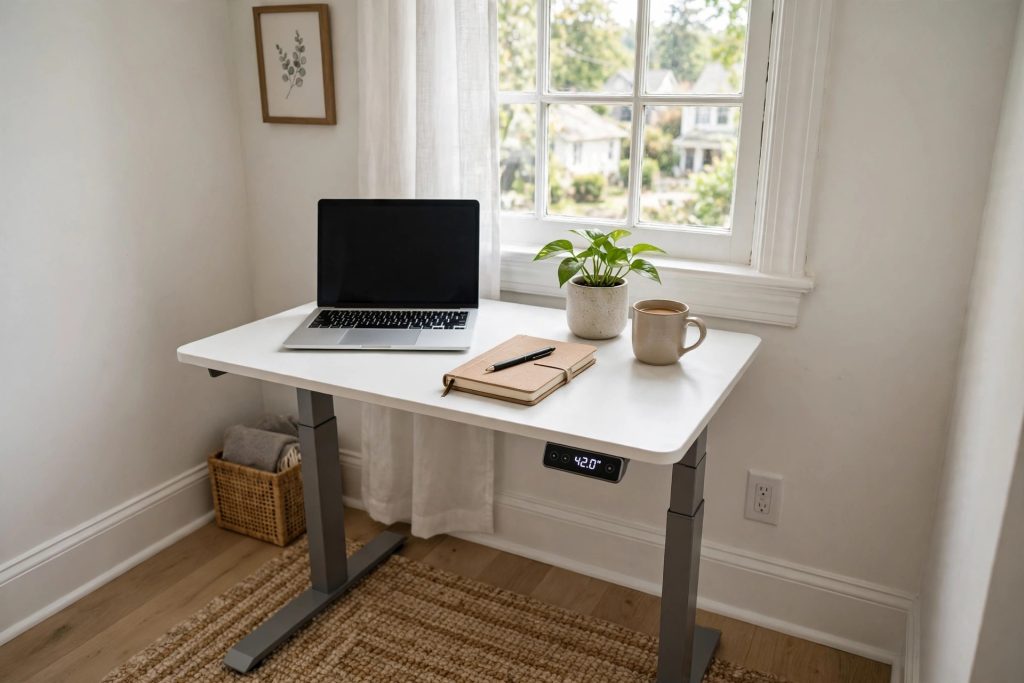
Do not work from the couch. Do not work from the bed. Pick one spot and make it the office: a spare room, a corner of the bedroom, even a well-lit closet nook. A dedicated spot tells your brain when work starts and stops, and it keeps your gear in one place.
Ooma's remote worker setup checklist puts the dedicated workstation at the top of its ergonomic section for exactly this reason (Ooma). Timechamp's essentials checklist likewise starts with furniture and space before any gadget (Timechamp).
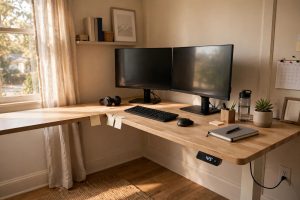
If space is tight, a wall-mounted desk shelf above the computer monitor frees surface area in a small footprint.
2. Get a real chair
Many homeowners find that remote employee home setup is easier than they expected once they know the basics.
The key to remote employee home setup is choosing the right approach for your space and budget.
This is the item new remote workers under-invest in most, according to CareerLend's checklist for new remote workers (CareerLend). A dining chair feels fine for an hour. By day three, your lower back disagrees.
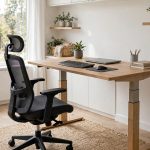
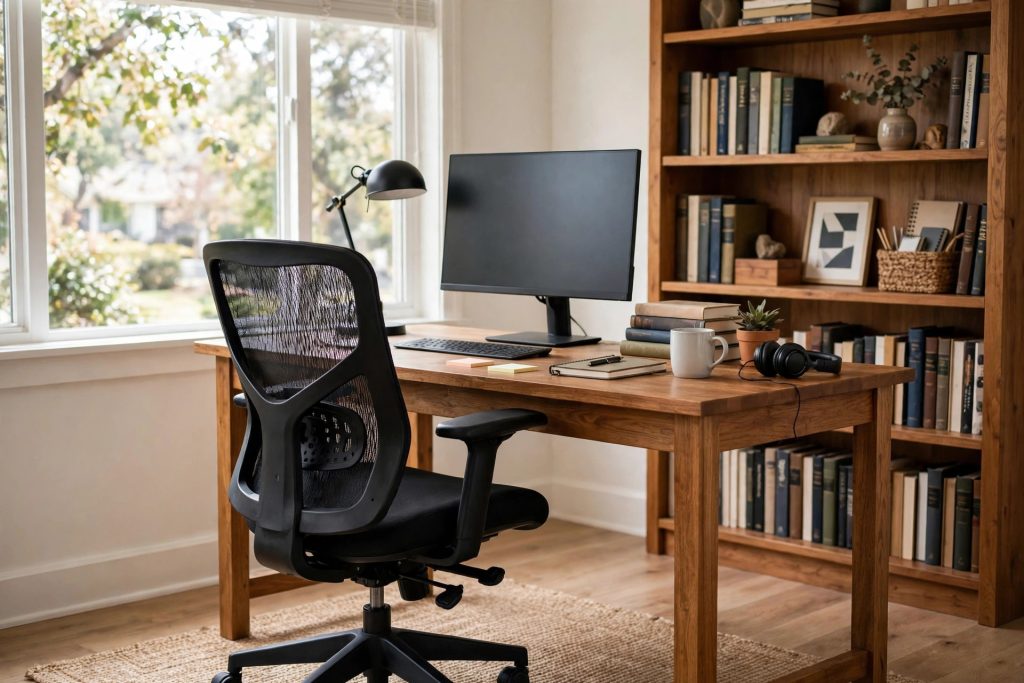
What to look for: adjustable height, lumbar support, and a seat that does not press into the back of your knees. An ergonomic office chair with a mesh back and lumbar support is a solid first serious chair.
No budget for a new chair yet? A firm pillow behind your lower back and a cushion on a hard seat get you through the first weeks. Colorado State's ergonomics tips show how to fake a good setup with household items: pillows for support, books to raise the monitor, a box as a footrest (Colorado State University).
3. Set the desk at the right height
The key to remote employee home setup is choosing the right approach for your space and budget.
With a little planning, remote employee home setup can fit even a busy schedule.
Your desk and chair work as a pair. Sit down and check the geometry that Penn State's ergonomics self-setup guide lays out: elbows near ninety degrees, forearms level with the keyboard, thighs parallel to the floor, feet flat (Penn State EHS).
If the desk is too high, raise the chair and add a footrest. If it is too low, put sturdy blocks under the legs. The University of Oregon's remote workstation guide gives the same fix-it-with-what-you-have advice for temporary setups (University of Oregon).
A home office desk with a hutch and storage keeps reference materials off the work surface, which matters more than it sounds once the papers start piling up.
4. Raise the screen to eye level
With a little planning, remote employee home setup can fit even a busy schedule.
Before you start, it helps to understand how remote employee home setup works in real homes.
Neck pain is the classic first-month remote complaint. It comes from looking down at a laptop for eight hours. Fix it on day one: the top of the screen should sit at or just below eye level, about an arm's length away.
For a laptop, that means a stand plus an external keyboard and mouse. A stack of books works as a stand in a pinch. Oregon's guide specifically recommends separating the screen from the keyboard so each can sit at its proper height (University of Oregon).
If you wear bifocals, drop the monitor an inch or two lower than standard. Keep the brightest light source to the side of the screen, not behind it, to cut glare.
5. Sort your keyboard and mouse
Before you start, it helps to understand how remote employee home setup works in real homes.
A good plan for remote employee home setup saves time, money, and frustration.
With the screen raised, you need input devices at the right height. An external keyboard and mouse let your wrists stay straight and your upper arms rest close to your body. Keep the mouse on the same surface as the keyboard, within easy reach.
Penn State's guide stresses straight wrists, relaxed shoulders, and no resting on hard desk edges (Penn State EHS). A soft wrist rest helps if your desk edge is sharp. Learn a few keyboard shortcuts for your most-used apps; every shortcut is mouse mileage you skip.
6. Lock down the internet
A good plan for remote employee home setup saves time, money, and frustration.
Nothing derails a first week like a dropped video call. Test your connection before day one. Run a speed test from your exact work spot. CareerLend recommends at least 25 Mbps for reliable remote work, and a Wi-Fi extender if the signal is weak where you sit (CareerLend).
Set up a backup. Your phone's hotspot covers most emergencies. Know how to turn it on before you need it. Freelances.site's remote-work checklist treats connection stability as important as raw speed, and lists backup power among the basics (Freelances.site).
Ask IT about the VPN before your start date, not during your first team meeting. Install it, test it, and confirm you can reach company systems.
With the basics clear, remote employee home setup becomes straightforward.
7. Get call-ready audio and video
For most people, remote employee home setup comes down to a few smart choices.
Test your webcam and microphone before anyone important sees them. Sit where you will sit, open the camera app, and look. Is your face lit or in shadow? Is the background tidy? A desk lamp or window light in front of you, not behind, fixes most bad video.
A headset with a microphone beats laptop speakers for calls. It cuts echo and keeps your voice clear. Metaintro's essentials list includes noise-canceling headphones as core tech for home offices (Metaintro).
If you share the house, a home office noise machine for focus and privacy adds steady background sound that masks household noise on calls.
8. Handle security basics
If you are new to remote employee home setup, start with the simplest option and build from there.
Remote work makes you the IT department for your corner of the network. Cover the fundamentals:
- Turn on the firewall and automatic updates.
- Use a password manager and unique passwords.
- Enable two-factor authentication everywhere it is offered.
- Lock your screen when you step away.
- Keep work files in company-approved storage, not scattered across personal drives.
Ooma's checklist devotes a full section to security setup, from multifactor authentication to VPN configuration (Ooma).
9. Set up light and air
When it comes to remote employee home setup, getting the details right makes all the difference.
You will sit here all day, so the room itself matters. Get light on the desk without glare on the screen. Crack a window or run a fan for fresh air. The University of New Mexico's work-from-home tips remind new remote workers to check temperature, air quality, and lighting as part of the setup, not as an afterthought (UNM HR).
Follow the 20-20-20 rule for your eyes: every twenty minutes, look at something twenty feet away for twenty seconds. Set a timer until it becomes habit.
10. Build the daily routine
Many homeowners find that remote employee home setup is easier than they expected once they know the basics.
Gear is half the setup. The other half is routine. Before day one, decide:
- Start and stop times. Write them down. Remote days expand to fill all available hours unless you guard the edges.
- A morning startup ritual. Get dressed, make the coffee, open the blinds. Signal to your brain that work has begun.
- Break schedule. Stand, stretch, or walk every half hour. Oregon's guide calls these microbreaks and treats them as part of ergonomics, not laziness (University of Oregon).
- An end-of-day shutdown. Close the laptop. Tidy the desk. Leave the room. Online Ergonomics' survival checklist ends with exactly this kind of audit: screen at eye level, feet supported, breaks scheduled, water within reach (Online Ergonomics).
- Household ground rules. Tell the people you live with your work hours and your do-not-disturb signals.
11. Ask about the stipend
Many employers offer a home office stipend or reimbursement, often in the hundreds of dollars. Ask HR before you buy everything yourself. Ooma's checklist even lists an internet reimbursement or stipend among its connectivity items, so the question is normal and expected (Ooma). Even a partial reimbursement changes what chair or monitor you can afford.
Keep receipts for everything work-related. Some costs may be tax-relevant depending on your situation; a tax pro can say for sure.
Day-one morning checklist
Run through this before your first login:
- [ ] Chair adjusted: feet flat, back supported, elbows at ninety degrees
- [ ] Screen at eye level, arm's length away
- [ ] Keyboard and mouse at elbow height, wrists straight
- [ ] Internet tested from the work spot; hotspot ready as backup
- [ ] VPN installed and tested
- [ ] Webcam and microphone tested; lighting on your face
- [ ] Water bottle filled and within reach
- [ ] Phone on silent, notifications tamed
- [ ] Break timer set
- [ ] Household informed of your hours
Tick these off and you start your remote career comfortable, connected, and professional. The couch will still be there at five o'clock. That is where it belongs. A little care goes a long way with remote employee home setup.
References
CareerLend. (n.d.). Home office checklist for new remote workers. https://careerlend.com/articles/home-office-checklist-new-remote-workers/
Colorado State University. (n.d.). Ergonomic tips for working from home. https://source.colostate.edu/ergonomic-tips-for-working-from-home/
Freelances.site. (n.d.). Work from home equipment checklist for remote jobs. https://freelances.site/work-from-home-equipment-checklist-for-remote-jobs
Metaintro. (n.d.). Work-from-home office essentials that actually boost productivity. https://www.metaintro.com/blog/work-from-home-office-essentials
Online Ergonomics. (n.d.). The holiday remote work ergonomic survival guide. https://www.online-ergonomics.co.uk/blog/the-holiday-remote-work-ergonomic-survival-guide/
Ooma. (n.d.). Remote work setup checklist: What employees need. https://www.ooma.com/blog/ultimate-remote-worker-office-setup-checklist/?srsltid=AfmBOoqQAHpUWSPRaKi72y1bO0KBKhihPzdwQYtRK33YkixuE3iDu62_
Penn State EHS. (n.d.). Computer workstation ergonomics: Self-setup guide. https://ehs.psu.edu/sites/ehs/files/ergonomics_self_setup_guide.pdf
Timechamp. (n.d.). Work from home essentials for professional remote setup. https://www.timechamp.io/blogs/work-from-home-essentials/
University of New Mexico HR. (n.d.). 8 tips to upgrade your work-from-home routine. https://hr.unm.edu/docs/eod/8-tips-to-upgrade-your-work-from-home-routine.pdf
University of Oregon. (n.d.). Ergonomic remote workstations. https://safety.uoregon.edu/sites/default/files/safety_sheet_-_ergo_remote_work_.pdf
Was this guide helpful?

About My Garden US
The My Garden US editorial team writes practical, in-depth home and garden guides for American homeowners — tested advice, no fluff.
You May Also Like
Home Office Acoustic Panels to Reduce Echo: A Plain Guide
March 3, 2026 17 views
Best Ring Light for Home Office Video Calls
September 4, 2026 19 views
Best Desk Accessories Set for New Home Office: A Complete Guide
August 13, 2026 16 views